Order-ready Pager

Your phone is the pager.

Scan the QR code, step away from the counter, and your phone tells you the moment your order is ready.

The comparison

Hardware pagers versus Waffi Pager.

The same job at the counter. A very different thing to run.

Pager device

Cost

Devices to buy, and to replace when they break.

Range

Limited by the device's range.

Devices and upkeep

Charging, cleaning and discs that go missing.

Branding

The same plain disc for every business.

Setup

Hardware to buy, install and set up.

Waffi Pager

Cost

No devices to buy: the customer's own phone is the pager.

Range

Works wherever the phone has an internet connection.

Devices and upkeep

Nothing for your team to charge, clean or chase.

Branding

Your business name, logo and brand colour on the ticket.

Setup

No hardware: type an order number and show the QR code.

What it does

What customers see on their phone.

01

Customers follow their own order

The ticket page shows your logo, the order number and the status, and it refreshes itself every few seconds while it is open. It follows the language of the customer's phone, English or Arabic.

02

Alerts on Android

On Android, a customer can tap Get an alert when it's ready. The alert reaches the lock screen when you tap Ready, even if the page is closed, and one reminder follows if the order is still waiting three minutes later.

03

A Live Activity on iPhone

On iPhone the ticket appears on the lock screen and in the Dynamic Island, and changes to Ready when you tap Ready.

04

Several ticket designs

Owners and managers pick a ticket design on the Ticket design page: several layouts, ready-made styles for coffee shops, car washes, barber shops and restaurants, your brand colour, a solid or see-through background, and wording for your kind of order (order, coffee, car or turn). The iPhone ticket follows the design; the web ticket uses your colour and wording.

Some features are included only in certain plans.
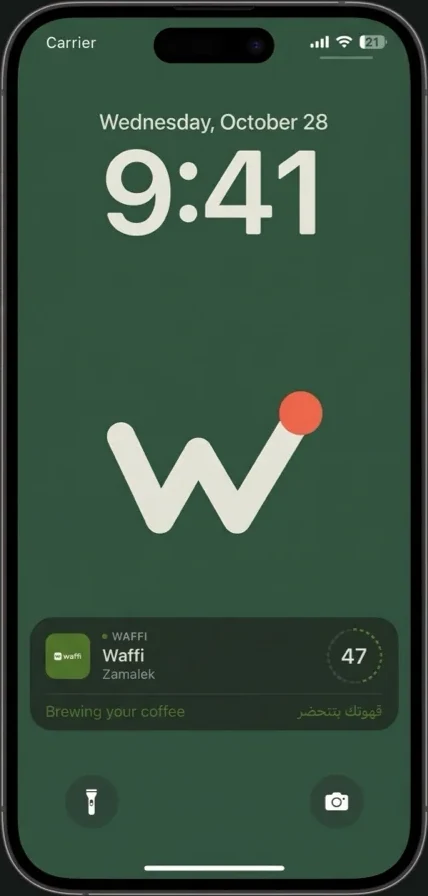
An iPhone lock screen showing a Waffi Pager Live Activity: the business logo, the branch name, order number 47 and the status Brewing your coffee.

How it looks on an iPhone.

The customer scans the QR code and the ticket starts as a Live Activity: your logo, the branch, the order number and the status, such as Brewing your coffee, on the lock screen and in the Dynamic Island. It opens through a small App Clip, so there is nothing to install from the store. When your team taps Ready, it changes to Ready and alerts the customer. An iPhone that cannot open the App Clip uses the same ticket page in the browser, as Android phones do.

At the counter

How it works at the counter.

  1. 01

    Type the number

    When an order is placed, a team member types its number on the Pager pad at their branch.

  2. 02

    Show the QR code

    A full-screen QR code appears. The customer scans it with the phone camera: on iPhone the ticket starts as a Live Activity, and on Android it opens in the browser.

  3. 03

    Tap Ready

    When the order is done, tap Ready. The iPhone Live Activity changes to Ready, and an Android phone with alerts on gets a lock-screen notification.

  4. 04

    Tap Done

    When the customer collects it, tap Done. The ticket ends and the number can be used again.

Who it is for

For counters where people wait.

A café with a queue for coffee, a restaurant with takeaway orders, or a bakery with a busy pastry counter. The Pager works for customers who have not joined your loyalty program.

Cafés and coffee shops

A seven-stamp coffee card, plus the Pager to tell customers their order is ready.

Restaurants

A points card that grows with every bill, with birthday offers and lunch coupons.

Bakeries and sweet shops

A ten-stamp treat card with gifts that expire, seasonal coupons and ready-for-pickup alerts.

Questions from owners like you.

Straight answers before you start.

Does the customer need an app or an account?

No account and no store download. On iPhone the QR code opens a small App Clip that starts the Live Activity; on Android it opens a web page. The ticket is anonymous: it creates no customer and no loyalty card.

How does it work on iPhone and Android?

On iPhone, scanning the QR code starts a Live Activity on the lock screen and in the Dynamic Island through a small App Clip, with nothing to install from the store, and it changes to Ready when you tap Ready. On Android the ticket opens in the browser, and phones that allow notifications are alerted on the lock screen. An iPhone that cannot open the App Clip uses the same ticket page in the browser.

Does Waffi hold my orders?

No. Waffi only knows the order number you type and its status. The order itself stays in your own till.

Can several branches use it?

Yes. A ticket belongs to one branch, and a number can be used again at another branch. Staff can page only at the branches they are assigned to.

How long does a ticket last?

A ticket ends when staff tap Done. One that is not finished within three hours expires by itself, and its number is free again.

More features

Explore the rest of the Waffi toolkit.

Apple Wallet loyalty cards

A loyalty card that lives in Apple Wallet, updates after every stamp or purchase and can send a message to the lock screen.

Campaigns and birthday messages

Messages, coupons and birthday offers that reach the card in your customers' wallets, for customers who agreed or signed themselves up earlier without a recorded choice.

Start with your next regular

Build a loyalty card worth coming back for.

Set up your Pager and tell your first waiting customer their order is ready.