Apple Wallet and Google Wallet loyalty cards, explained
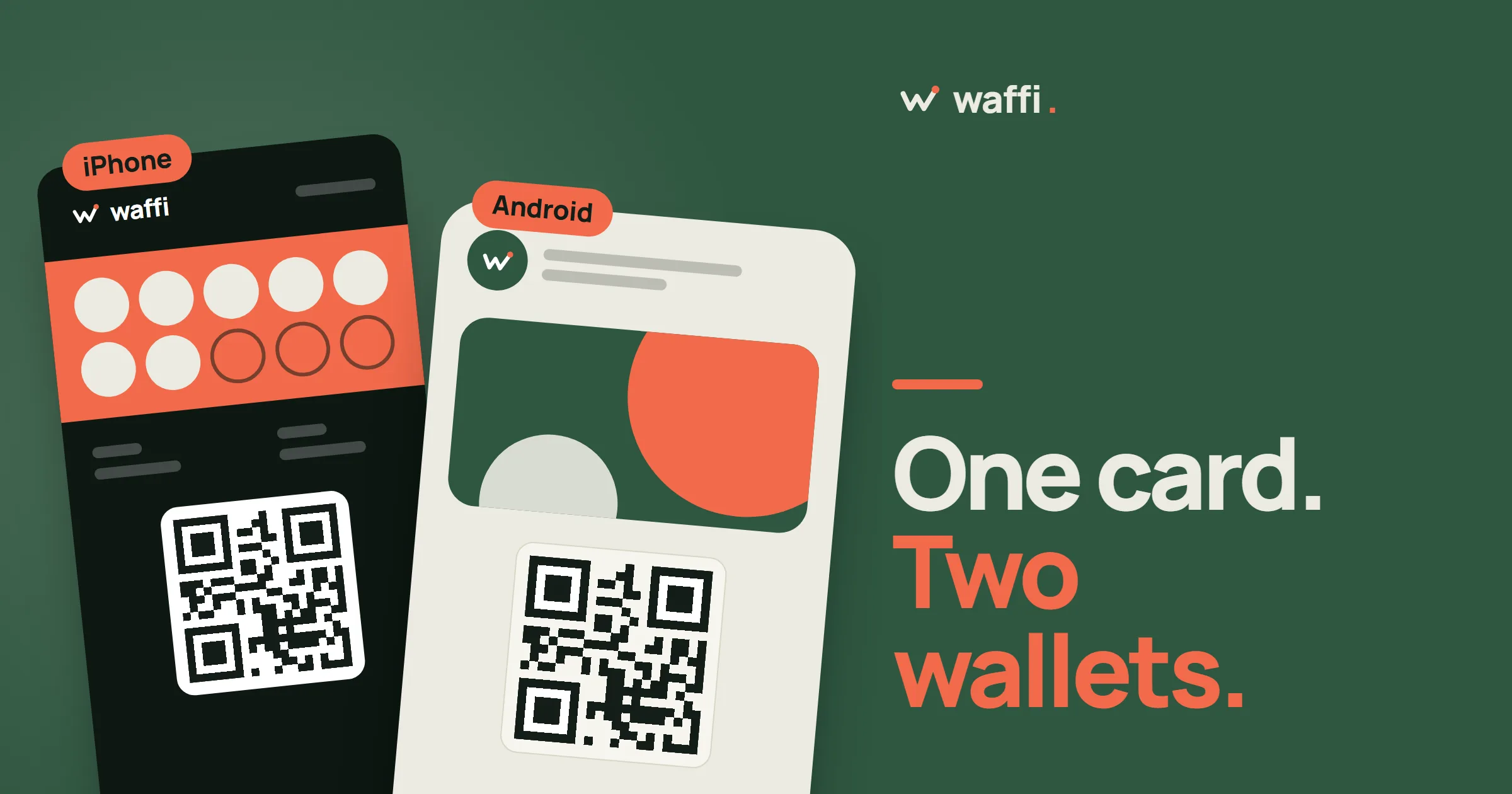
When you design a loyalty card in Waffi, you design it once. Your customers then save it to the wallet already on their phone: Apple Wallet on an iPhone, Google Wallet on an Android phone. They do not install an app, create an account or remember a password.
This article walks through what a customer actually sees, from the first scan to a message on the lock screen, so you know what to expect when you hand your first customer a QR code.
Step one: the customer joins
Joining starts at your counter. The customer scans the QR code on your Counter Sign, or taps a signup link you shared on WhatsApp or social media. A short form opens in the phone's browser, with your business name at the top.
The customer enters their name and at least an email address or a phone number. Phone numbers include the country code, for example +20 for Egypt. The offers checkbox starts unticked and is required to join. Earlier self-signups without a recorded marketing choice also qualify; declines and withdrawals are excluded.
When they tap Create my loyalty card, the page changes to Your loyalty card is ready. It shows their card, a QR code and a six-digit card number. This card page keeps working in the browser too, so a customer who never saves the pass to the wallet can still show it to your staff.
Step two: saving the pass
Below the card, the page offers the wallet button that fits their phone.
On an iPhone, the customer taps Add to Apple Wallet. Waffi prepares the pass, the phone shows it, and one more tap on Add puts it in Wallet next to their other cards and tickets. Depending on the browser, the pass first arrives as a download that the phone then opens.
On an Android phone, the customer taps Add to Google Wallet, continues to Google Wallet and confirms Add. The pass is saved to their Google account and shows up in the Google Wallet app.
Both wallets are made by Apple and Google, and they are already on the phone. That is why you can tell customers "no app" and mean it.
What the card looks like
The pass carries your brand, not ours. It shows your logo and colours, the customer's progress, for example "4 / 7" stamps, and any gifts they have saved. A QR code sits on the pass with the six-digit card number beneath it, so staff can scan it or type the number.
The pass is written in the language the customer chose when they joined. If you update the card design or a reward, every connected pass is updated, whichever wallet it is in. The details are slightly different in each wallet, because Apple and Google decide how a pass is drawn, but the information is the same.
Step three: the stamp, and the pass that catches up
At the counter, your Staff Member scans the pass or types the six-digit number into Earn & redeem, then adds a stamp or the purchase amount. As soon as the change is saved, Waffi tells the wallet service that the pass has changed.
- Apple Wallet: the iPhone is told that the pass has a new version, and fetches it.
- Google Wallet: Waffi refreshes the pass in the background at Google.
In both cases the customer opens their wallet and sees the new count. How quickly depends on Apple, Google and the phone's connection. A pass can lag behind the counter for a short time, so staff can show the new stamp on their own screen if a customer is curious.
Step four: messages on the lock screen
A loyalty card is most useful when it speaks up at the right moment. Waffi can put messages on the pass, and each wallet handles them in its own way.
On Apple Wallet, a pass has a message line. When a stamp card is one stamp away from a reward, or the reward is ready, the line changes and the iPhone can show it on the lock screen. Your campaigns and birthday messages use the same line. The balance on its own changes silently: only the message line notifies. A customer can mute a pass in Wallet whenever they want.
On Google Wallet, campaigns, birthday messages and tier messages are added to the pass as notifications, in the customer's language. Google allows three notifying messages per pass in 24 hours. A fourth one still arrives on the pass, but without an alert. Waffi counts the alerts and sends the extra messages without one.
Campaigns and birthday messages depend on your plan. Marketing messages go to customers who agreed to them, plus earlier self-signups with no recorded marketing choice; declines and withdrawals are excluded.
A reminder when they are close
If you save the location of your branch, the pass can be offered on the lock screen when the customer is near, with a line you wrote yourself. The phone decides when to show it, using its own location settings, so Waffi never tracks anyone. This is optional, you set it per branch, and it depends on your plan.
What the customer does not need
- An app from you.
- An account, a password or a login.
- To remember the card: it is in the phone.
- To understand how it works: they scan, they tap, they see the stamp.
What to tell your customers
Your staff do not need to explain Apple Wallet and Google Wallet separately. The same sentence works for everyone: "Scan this, save the card to your phone, and ask for a stamp every time you come." The page shows each customer the button for their phone.
If a customer asks what happens when they change phones, the answer is simple: they open their card page and save the pass again. If they cannot reach it, an Owner or Manager can issue a new card link from the customer's profile in the dashboard.
Questions owners ask
Does the pass update when I change my reward? Yes. When you change the card design or its rewards, Waffi refreshes the connected passes.
Which wallet should I design for? Neither. You design one card, and each customer sees the button for their own phone: Add to Apple Wallet on an iPhone, Add to Google Wallet on Android.
What if a customer turns off notifications? The pass still updates. The customer simply does not get the lock-screen alert, and sees the new count when they open their wallet.
Is there anything I have to install? No. You design and manage everything from your browser, and your staff use the same dashboard at the counter.